Send Shopify Customer File Uploads to Your Own SFTP Server
Some shops don't want customer files in a cloud drive at all. They want them on their own server, where a print queue, prepress tool, or back-office script picks them up. File To Inbox can write every customer upload straight to your server over SFTP, the secure file transfer protocol that runs over SSH. You still get email notifications for new uploads (sent in batches every 30 minutes), and after delivery the app keeps only a backup copy for 30 days before deleting it. SFTP support is new, so it carries a Beta badge in the app.
Don't have File To Inbox yet? Install it from the Shopify App Store →
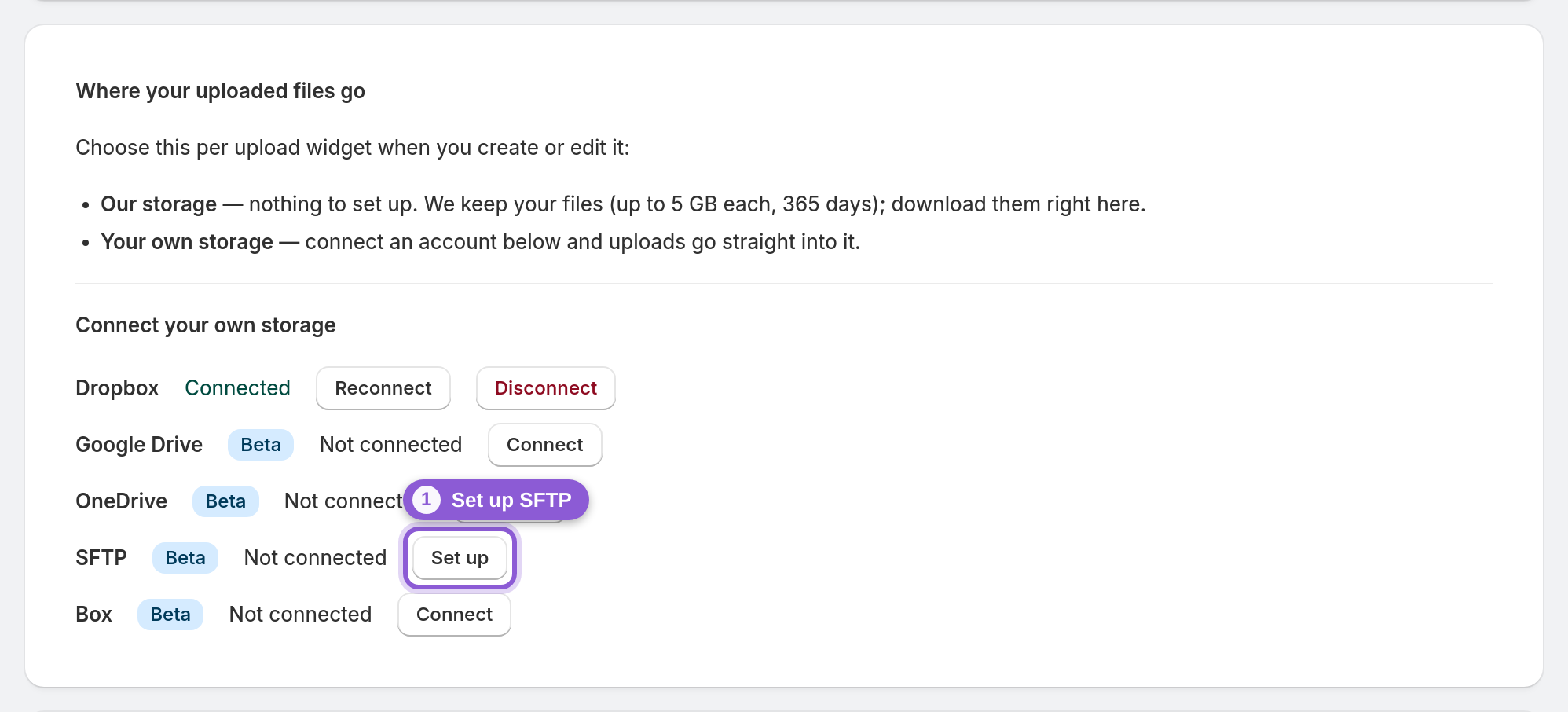
1 Open the SFTP setup on the dashboard
Open the app's dashboard and find the Where your uploaded files go card. Under Connect your own storage, click Set up next to SFTP. There's no sign-in pop-up like with Dropbox or Google Drive. Instead, a short form asks for your server details.
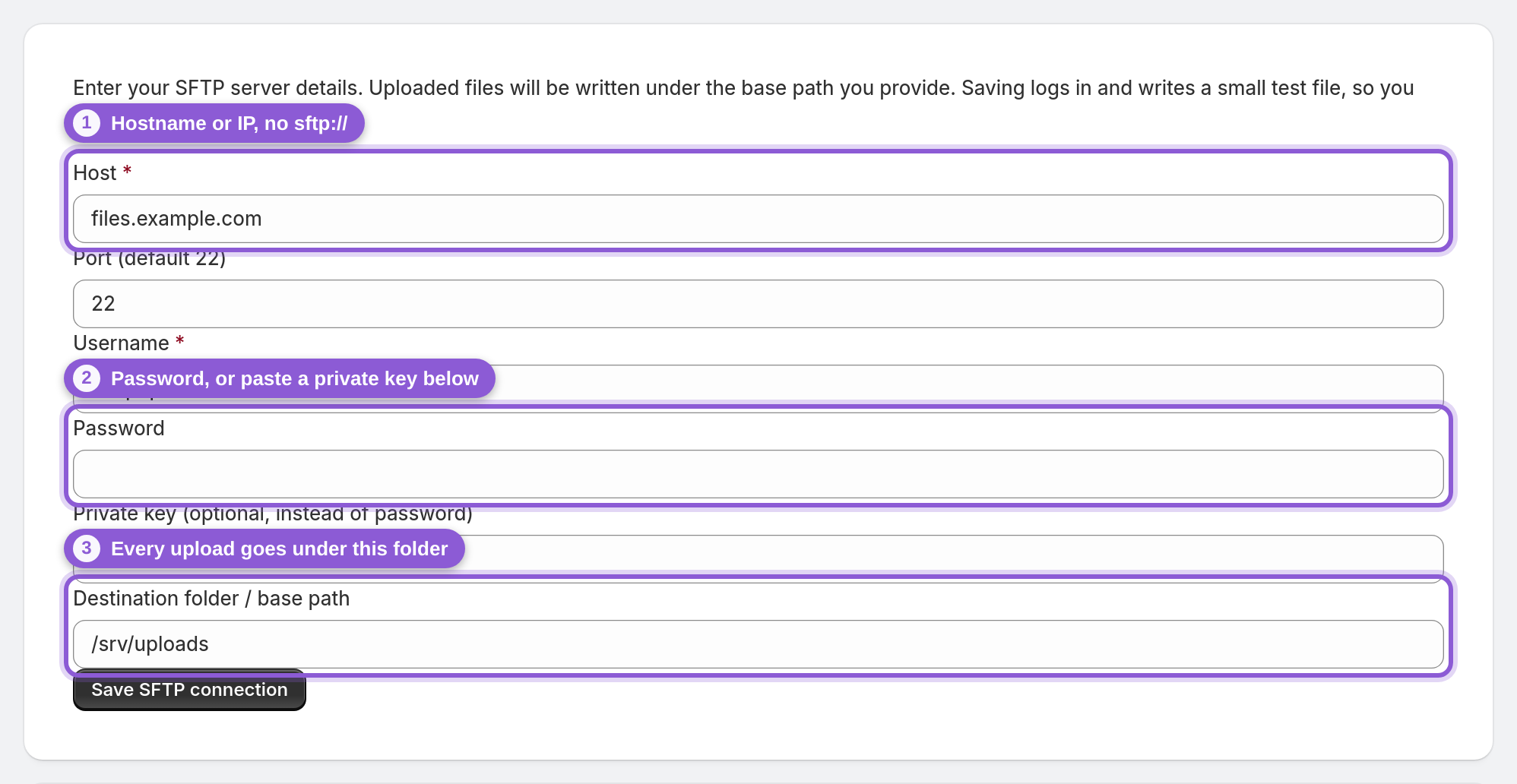
2 Enter your server details
Fill in the Host (a hostname like "files.example.com" or an IP address, without "sftp://"), the Port (leave it empty for the standard 22), and the Username. Then sign in with either a Password or a Private key. Paste the whole key, including its BEGIN and END lines; if the key has a passphrase, put the passphrase in the Password field. Finally, set the Destination folder / base path, the folder on your server that every upload goes under, for example "/srv/uploads". Leave it empty to use the login's home folder. Click Save SFTP connection. Before saving, the app logs in to your server, creates the base path if it's missing, and writes and deletes a small test file. If any of that fails, the form tells you what went wrong and nothing is saved.
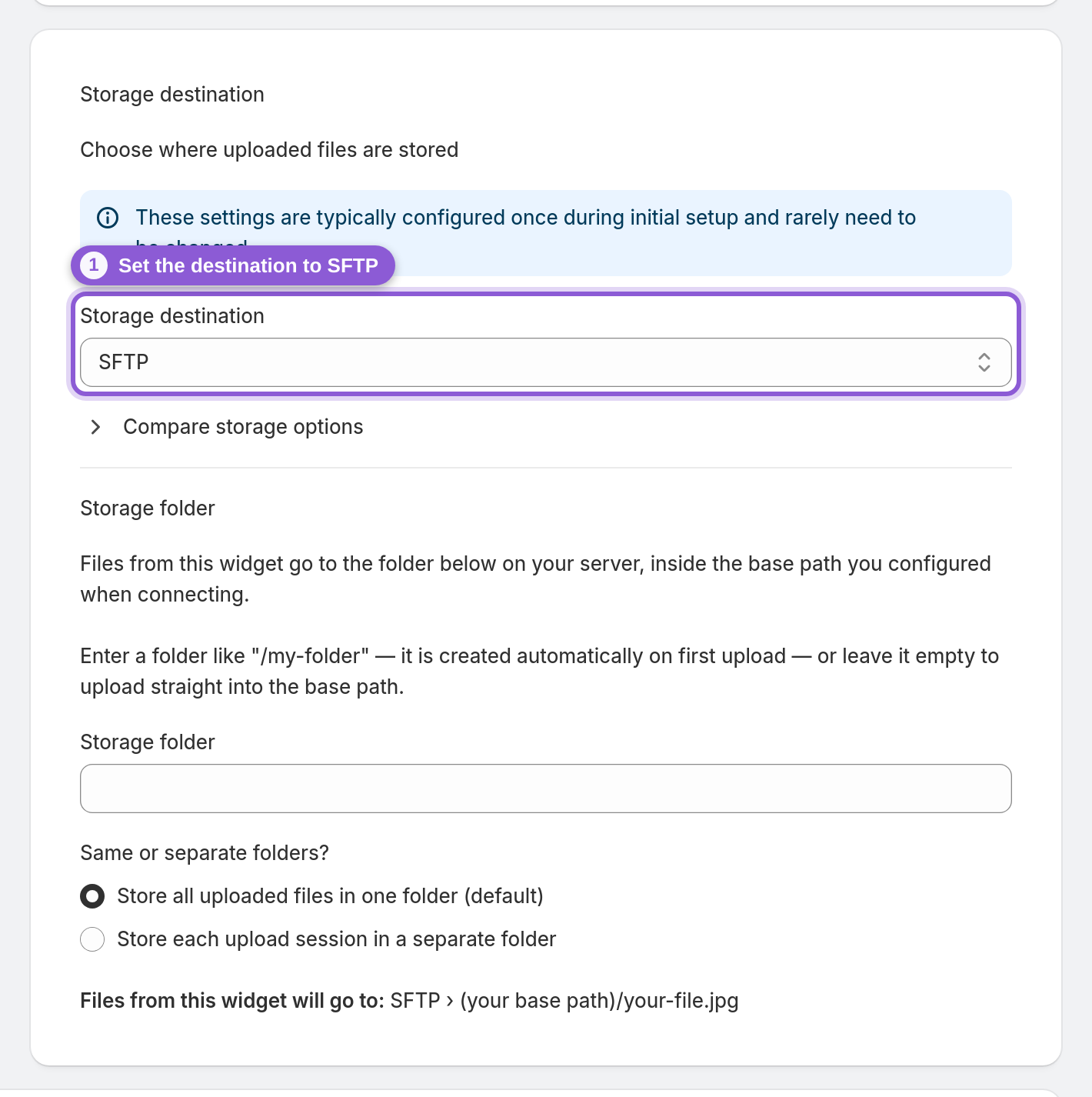
3 Point a widget at SFTP
Open any upload widget or standalone page. Storage destination is at the top of the editor, under Essentials. Set the dropdown to SFTP and Save. That widget's uploads now go to your server, while other widgets can keep using Dropbox, Google Drive, OneDrive, Box, or the built-in Cloud storage.
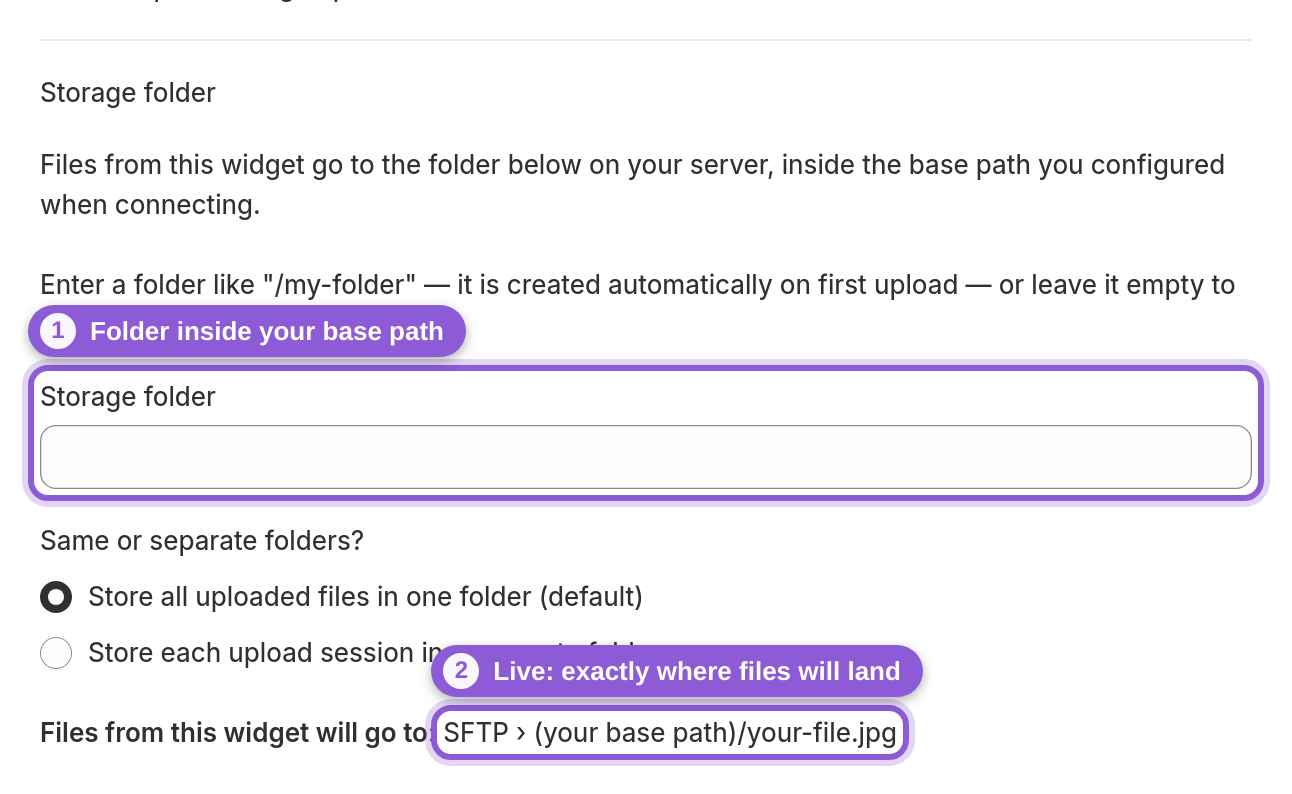
4 Choose the folder under your base path
The widget's Storage folder field is a folder inside the base path you entered in step 2. Type something like "/artwork" and the files land in "/srv/uploads/artwork" (the app creates missing folders on first upload, including nested ones). Leave it empty to write straight into the base path. Pick Store each upload session in a separate folder to give every customer's upload its own subfolder, which makes it easy for scripts to pick up one order at a time.
5 Send a test upload
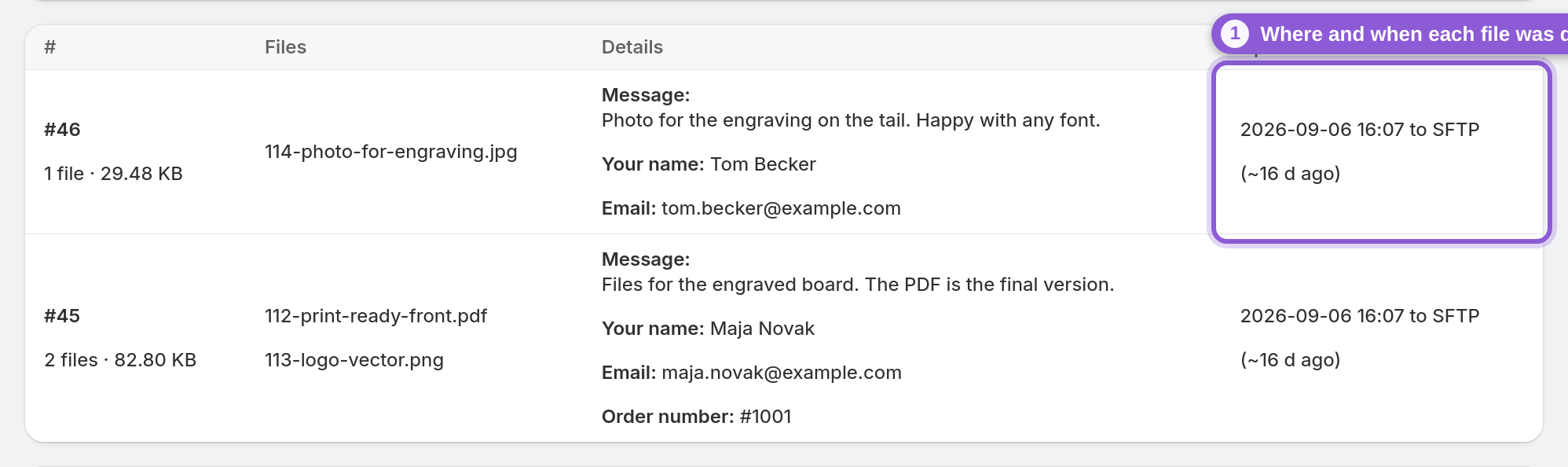
The connection test proves the app can log in and write, but it's still worth one end-to-end check. Upload a small file through the widget yourself and check that it appears on the server. If it doesn't (say the server went down or the password changed later), the dashboard's Upload health card shows the failed delivery, and Retry now resends it once you've fixed the details. After that, customer uploads show up in the widget's Uploads list with to SFTP. Filenames are listed there and in the notification email without links, because files on your server can't be opened from the web. Open them on the server itself.
Frequently asked questions
Can Shopify customer uploads go to my own SFTP server?
Yes. Click Set up next to SFTP on the app's dashboard, enter your server details, and set your upload widget's Storage destination to SFTP. Every customer upload from that widget is written to your server.
Does it support plain FTP or FTPS?
No, only SFTP (file transfer over SSH, usually port 22). Plain FTP sends passwords unencrypted, and FTPS isn't supported. If your host only offers FTP, check whether SSH/SFTP access can be switched on, or use Dropbox, Google Drive, OneDrive, or Box instead.
Can I log in with an SSH key instead of a password?
Yes. Paste the private key into the Private key field, including the BEGIN and END lines. If the key is protected by a passphrase, enter the passphrase in the Password field.
Where on my server do the files end up?
Under the base path from the connection, in the folder set on each widget. With a base path of "/srv/uploads" and a widget folder of "/artwork", files land in "/srv/uploads/artwork". Missing folders are created automatically.
How big can uploaded files be?
Up to 5 GB per file. Make sure your server has the disk space.
How long do files stay on my server?
As long as you keep them. The app never deletes files it delivered. The 365-day limit only applies to the app's built-in Cloud storage.
My server only accepts connections from known IP addresses. What do I do?
The app doesn't connect from a fixed IP address, so an IP allowlist can't be used. Allow SFTP connections from the internet on that port and protect the account with a strong password or an SSH key instead.
What happens if the connection test fails?
The form shows why. "Could not connect and log in" means the host, port, username, password or key is wrong, or the server doesn't accept connections from the internet. "Could not write" means the login works but that user can't write to the base path. Nothing is saved until the test passes.
Can I set up SFTP while creating a new widget?
Yes. In the Add an upload widget wizard, pick SFTP as the destination. The summary screen after Create widget shows a Set up SFTP button, and once your server details pass the connection test you're brought back to that summary.
What happens if I disconnect SFTP?
Files already delivered stay on your server. Widgets still pointed at SFTP can't deliver new uploads until you set the connection up again, so switch their Storage destination first.