Where Uploaded Files Go: Email, Dropbox, Google Drive & More
When a customer uploads a file, two things should happen: you get told about it, and the file lands somewhere you actually work. File To Inbox does both — an email notification to your inbox about new uploads (sent in batches every 30 minutes), and the file itself delivered to the storage you choose. You can keep it simple with the app's built-in Cloud storage, or send uploads straight into your own Dropbox, Google Drive, OneDrive, Box, or SFTP server. This guide covers picking a destination, connecting your own account, and setting the email that gets notified.
Don't have File To Inbox yet? Install it from the Shopify App Store →
1 See where your files can go
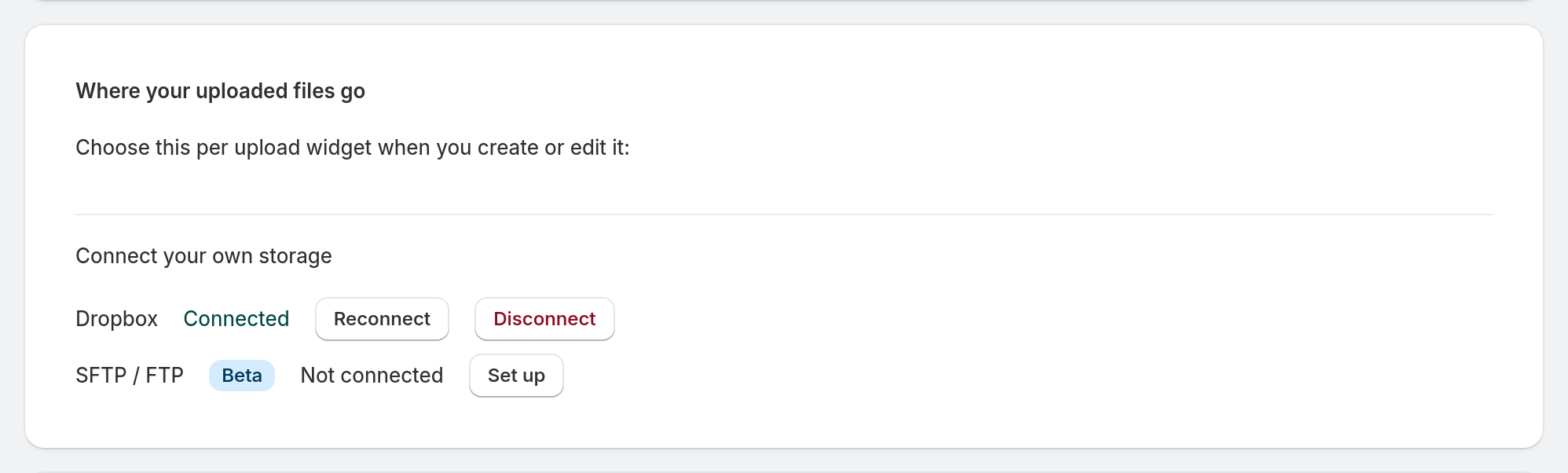
On the dashboard, the Where your uploaded files go card lays out your two paths. Our storage needs nothing set up — the app keeps your files (downloadable right from the dashboard) and holds them for 365 days. Your own storage sends every upload straight into an account you connect. You decide which to use per widget, so different widgets can even go to different places.
2 Connect your own storage account
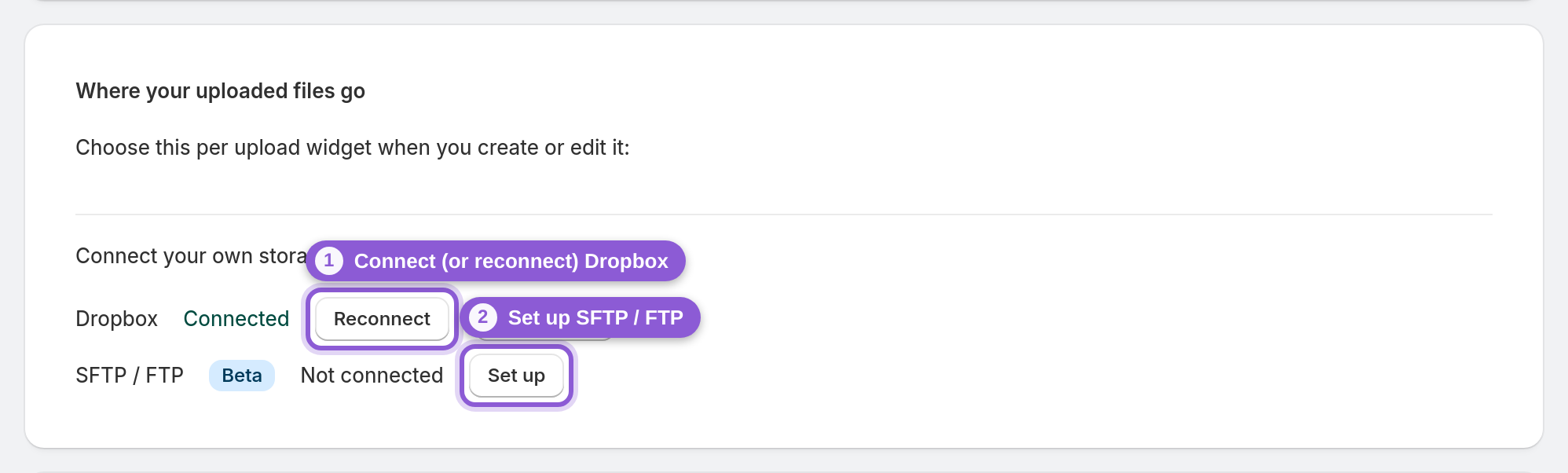
Want files in your own account? Under Connect your own storage, pick your provider — Dropbox, Google Drive, OneDrive, Box, or SFTP — and click Connect (or Set up for SFTP). The cloud providers send you through their own quick sign-in and permission screen; SFTP asks for your server details. Once the row says Connected, that destination is ready to pick for any widget, and you can Reconnect or Disconnect it there later. We have step-by-step guides for Dropbox, Google Drive, OneDrive, Box, and SFTP.
3 Set the email that gets notified
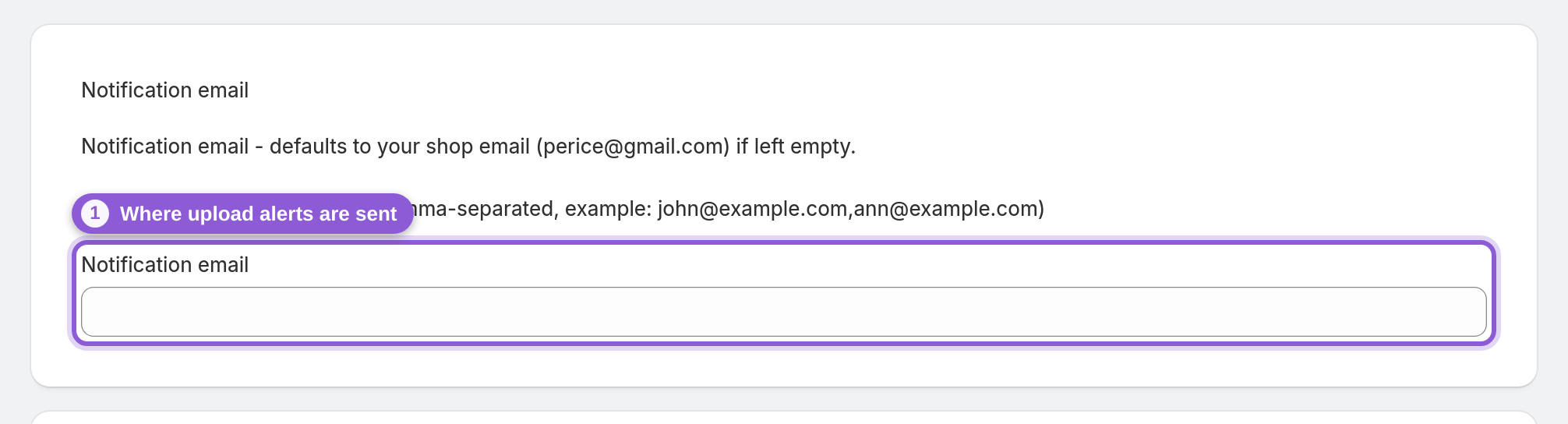
Click Notification settings on the dashboard to open the Notification email field. This is where upload alerts are sent — new uploads are emailed here in batches every 30 minutes (not instantly), and you can choose to group uploads into one email. You can enter multiple emails (comma-separated) to alert a whole team, and if you leave it empty it defaults to your shop email. Save when you're done.
4 Choose the destination for each widget
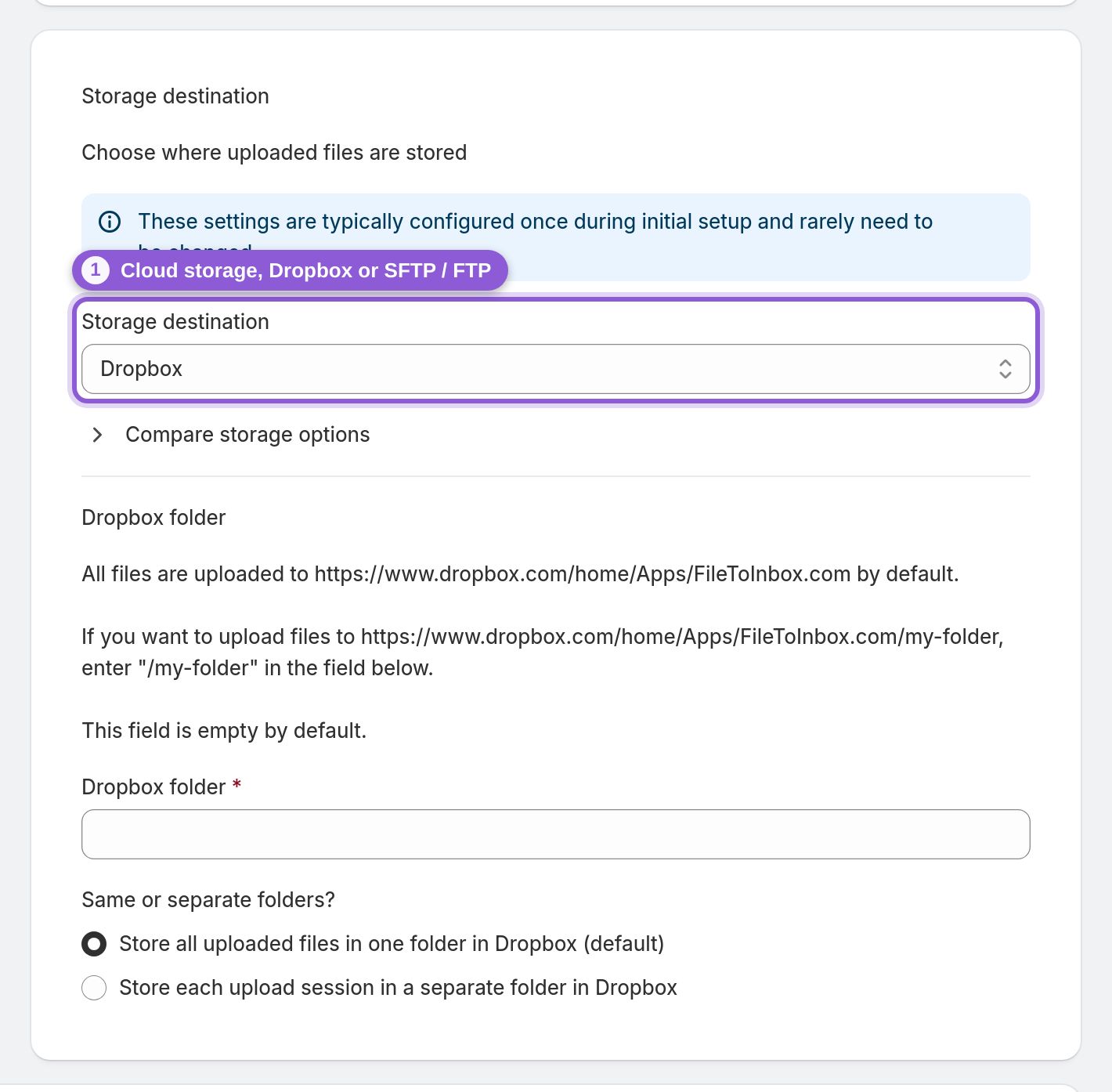
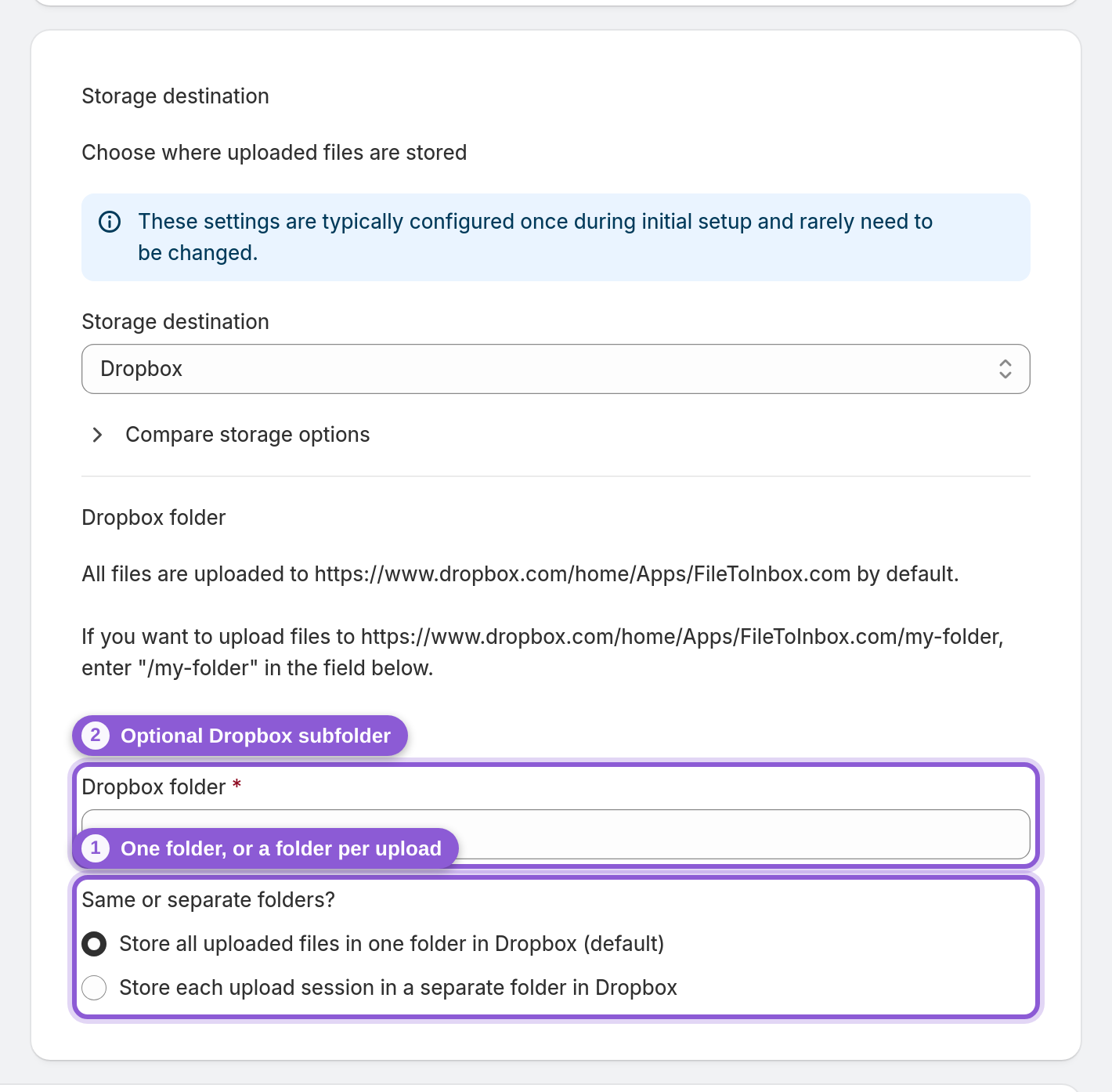
Open any upload widget or page. Storage destination is at the top of the editor, under Essentials. The Storage destination dropdown lets you send that widget's files to Cloud storage (the built-in option) or any storage you've connected — Dropbox, Google Drive, OneDrive, Box, or SFTP. Because it's set per widget, your product-page uploads and your standalone page can land in completely different spots.
5 Keep each upload in its own folder
Still under Storage destination, the Storage folder field sets where in your account this widget's uploads land — for Google Drive, OneDrive, and Box it defaults to a /FileToInbox.com folder the app creates for you. Type any folder path to override it (created automatically on first upload), and switch Same or separate folders? to a separate folder per upload session so each customer's files stay grouped. The "Files from this widget will go to" line below always shows the exact destination.
Frequently asked questions
Where do customer uploads go?
You get an email notification about new uploads (sent in batches every 30 minutes), and the file itself is delivered to the storage you choose per widget: the app's built-in Cloud storage (downloadable from the dashboard), or your own Dropbox, Google Drive, OneDrive, Box, or SFTP server.
Which cloud storage providers are supported?
Dropbox, Google Drive, OneDrive, Box, and SFTP — plus the app's built-in Cloud storage that needs no setup at all. Each upload widget picks its own destination.
How do I send Shopify uploads to my Dropbox?
On the dashboard, under Connect your own storage, click Connect next to Dropbox and approve the permission screen. Then open your widget, set Storage destination to Dropbox, and Save — new uploads go straight into your Dropbox.
Can I upload customer files to my own SFTP server?
Yes. Under Connect your own storage choose Set up next to SFTP and enter your server details. Once connected, select SFTP as the widget's Storage destination. It's SFTP only: plain FTP and FTPS aren't supported. The SFTP guide walks through the server details.
Do I get an email when a customer uploads a file?
Yes. Set the address in Notification settings (the Notification email field) and new uploads are emailed to that inbox in batches every 30 minutes (not instantly), optionally grouped into one email. You can enter multiple comma-separated addresses to notify a whole team, and it defaults to your shop email if left empty.
How long are files kept in the app's cloud storage?
Files in the built-in Cloud storage are kept for 365 days and can be downloaded from the dashboard. If you connect your own storage — Dropbox, Google Drive, OneDrive, Box, or SFTP — you control retention.
Can different widgets send files to different places?
Yes. Storage destination is set per widget, so your product-page widget can go to Dropbox while your standalone page uses Cloud storage, for example.
Can I keep each customer's files in a separate folder?
Yes. Under Storage destination, set "Same or separate folders?" to a separate folder per upload session, so each customer's files stay grouped together instead of mixed into one folder. Widgets created with the wizard that deliver to your own storage start out with a folder per upload.
Do I have to connect any storage to get started?
No. The built-in Cloud storage works out of the box with nothing to set up — connecting your own Dropbox, Google Drive, OneDrive, Box, or SFTP is optional.