Send Shopify Customer File Uploads to OneDrive
If your business runs on Microsoft 365, your customers' files belong in OneDrive — not in a pile of email attachments. File To Inbox connects your Shopify store to OneDrive so every customer upload — artwork, documents, photos, spreadsheets — is delivered straight into your OneDrive, neatly organized in a folder the app manages for you. You still get email notifications about new uploads (sent in batches every 30 minutes), and the files live in your own Microsoft account, forever, under your control.
Don't have File To Inbox yet? Install it from the Shopify App Store →
1 Connect OneDrive on the dashboard
Open the app's dashboard and find the Where your uploaded files go card. Under Connect your own storage, click Connect next to OneDrive. Microsoft's sign-in screen opens — sign in with the Microsoft account that should receive the files and approve access. Back on the dashboard, the OneDrive row shows Connected with your account. (OneDrive support is fresh, so you'll see a Beta badge next to it.)

2 Point a widget at OneDrive
Open any upload widget or standalone page. Storage destination is at the top of the editor, under Essentials. Set the dropdown to OneDrive and Save — from then on, that widget's uploads are delivered to your OneDrive. The setting is per widget, so another widget can keep using Dropbox or the built-in Cloud storage.
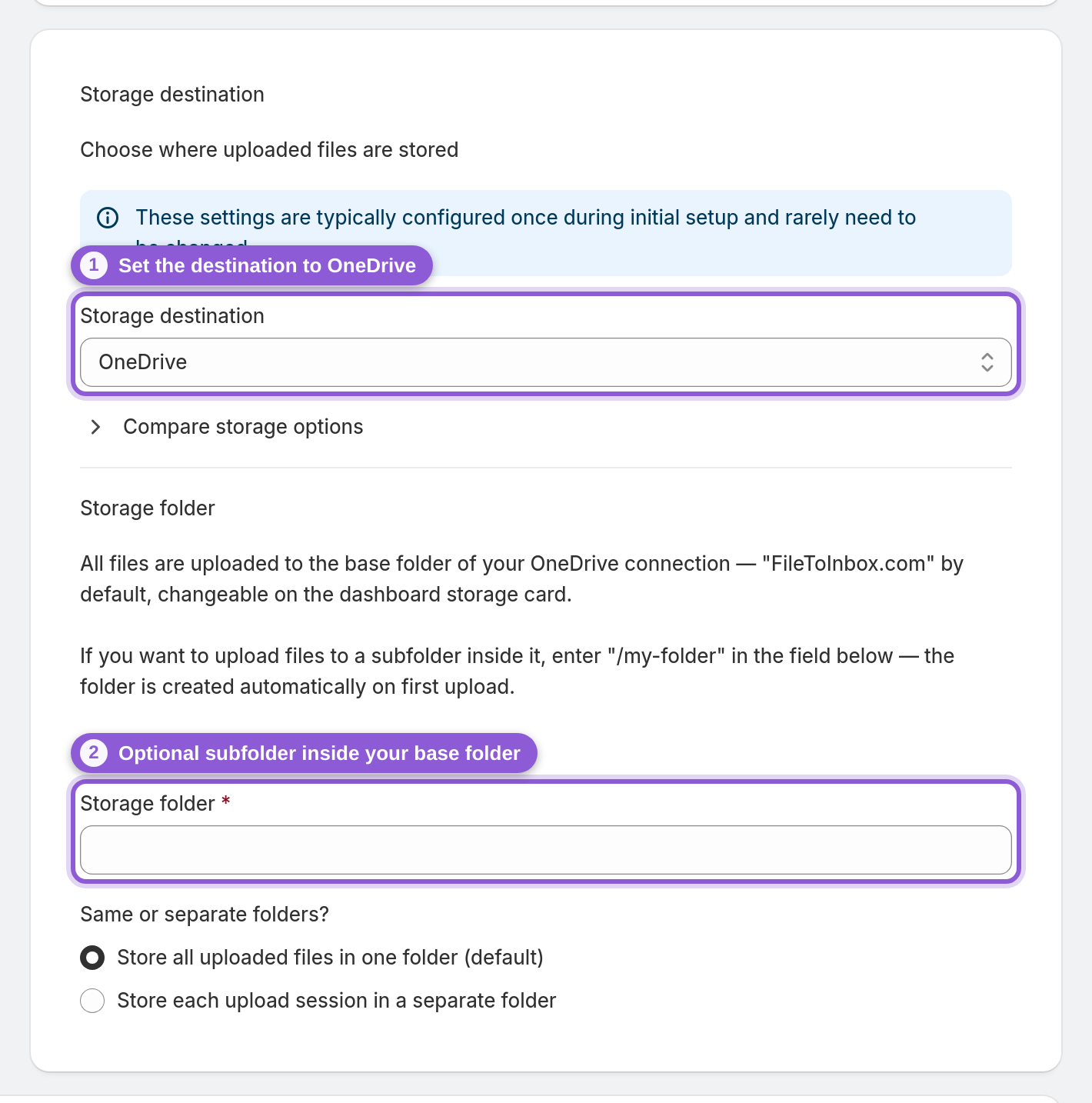
3 Choose the folder — and see exactly where files will land
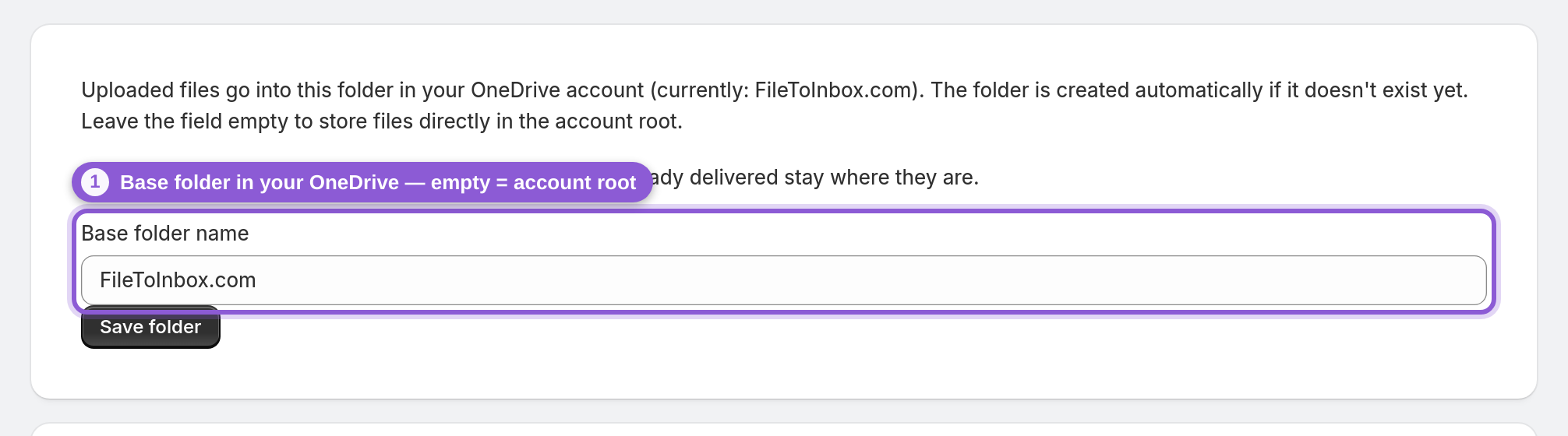
Right below the destination, the Storage folder field says where in your OneDrive this widget's uploads go — /FileToInbox.com if you leave it empty (the app creates it automatically, so files never clutter the OneDrive root). Type any path you like, for example "/FileToInbox.com/orders", and the app creates it on first upload; a single "/" sends files straight to the OneDrive root. Under Same or separate folders? pick Store each upload session in a separate folder to group each customer's files, and the "Files from this widget will go to" line at the bottom always shows the exact destination — no guessing.
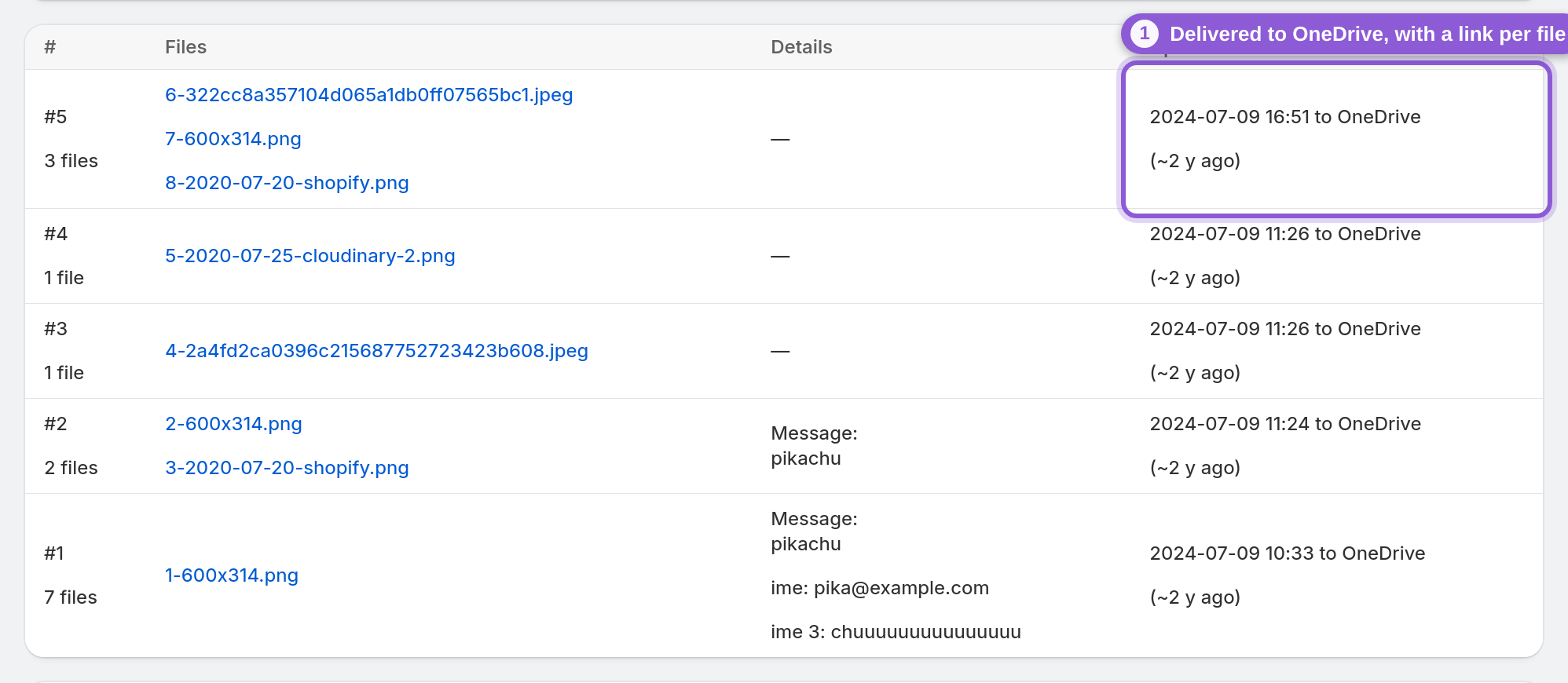
4 Open uploads right from the app
The app keeps its overview: the widget's Uploads list shows every session with to OneDrive in the Uploaded column, and each filename links straight to the file in OneDrive. The email notifications (sent every 30 minutes) carry the same links, so your inbox, the app, and OneDrive all point at the same file.
Frequently asked questions
How do I upload Shopify customer files to OneDrive?
Connect OneDrive on the app's dashboard (one click plus Microsoft's sign-in screen), then set your upload widget's Storage destination to OneDrive. Every customer upload from that widget lands in your OneDrive automatically.
Where in my OneDrive do the files end up?
In the folder set on each upload widget — /FileToInbox.com by default, created automatically. Every widget shows a live "files will go to" line in its settings, and each widget can use a different folder.
How big can uploaded files be?
Up to 5 GB per file.
How long do files stay in my OneDrive?
Forever — they're regular files in your own OneDrive, so retention is entirely up to you. The 365-day limit only applies to the app's built-in Cloud storage.
Can I use OneDrive for one widget and something else for another?
Yes. Storage destination is a per-widget setting, so different widgets can deliver to OneDrive, Google Drive, Box, Dropbox, SFTP, or the built-in Cloud storage independently.
Can I connect OneDrive while creating a new widget?
Yes. In the Add an upload widget wizard, pick OneDrive as the destination. If it isn't connected yet, the summary screen after Create widget shows a Connect OneDrive button, and after you approve access you're brought back to that summary.
What happens if I disconnect OneDrive?
Files already delivered stay in your OneDrive — the app never deletes them. Widgets still pointed at OneDrive can't deliver new uploads until you reconnect, so switch their Storage destination first or reconnect the account.
Does this work with both personal and work Microsoft accounts?
Connect whichever Microsoft account should own the files. If your organization restricts third-party app access, your Microsoft 365 admin may need to approve the connection.
Can uploads go to a SharePoint site or a Teams channel?
Not directly. Uploads go to the OneDrive of the Microsoft account you connected, which is OneDrive for Business if you connect a work account. SharePoint team sites and document libraries (including the ones behind Teams channels) can't be picked as a destination. To get files in front of your team, share the widget's folder in OneDrive with them.