Shopify File Upload App: Let Customers Upload Files With Their Orders
If you sell anything that needs a file from the customer — print-on-demand artwork, an engraving design, a prescription, a logo for a custom order — you already know the pain of chasing files over email. A Shopify file upload app fixes that by adding an upload field where customers already are: on the product page and on a standalone upload page. Files arrive tied to the order, with a notification straight to your email inbox and the files stored in the cloud. This guide walks through how File To Inbox ‑ File Upload works and how to get customers uploading files with their orders.
Don't have File To Inbox yet? Install it from the Shopify App Store →
1 Install the app and get two upload surfaces out of the box
Install File To Inbox ‑ File Upload from the Shopify App Store. On install the app sets up its two upload surfaces for you: a standalone upload page published on your storefront, and a product uploads widget ready to configure. The first-run dashboard walks you through the two decisions that matter — where to receive files (the app's built-in cloud storage or your own) and which upload widget to create. There's no theme code to edit at any point.
![Install the app and get two upload surfaces out of the box — s-link[target="_blank"], s-button[href*="uploadPage/edit/2"] highlighted](/docs-assets/img/shopify-file-upload-app/00-two-upload-surfaces.png?6f58add9)
2 Add an upload widget to your product pages
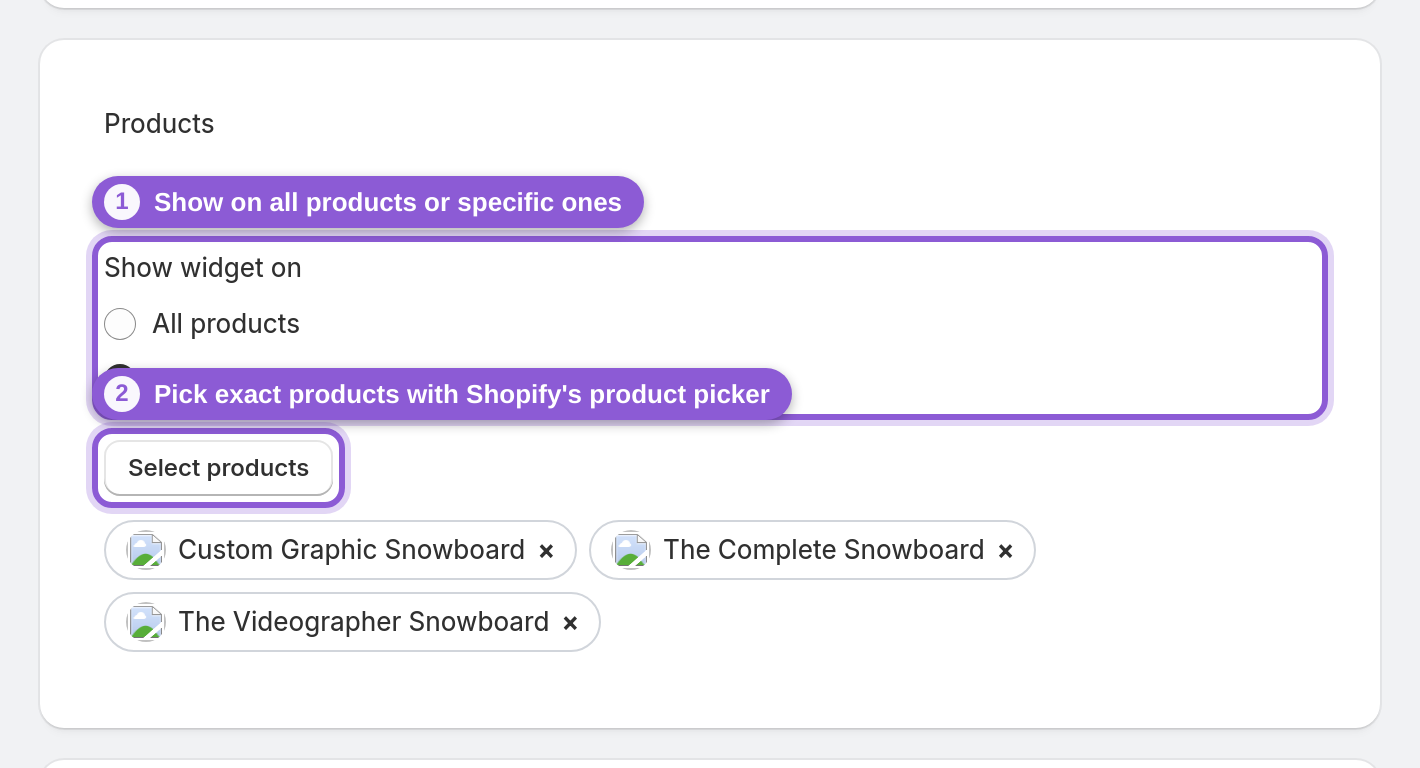
Open Add an upload widget and choose where it should appear: on all products, or only on specific products you pick with Shopify's product picker — ideal when only your print-on-demand or engraving items need files. You control the field label, whether the upload is required or optional, an optional message field and instructions, the maximum number of files, and the look (light, dark, neutral or custom colors). Click Create widget and the app deploys it to your storefront automatically; a summary shows which products get the field and where the files go. Product-page uploads are included in both plans, Pro ($19/month) and Business ($29/month), and each comes with a 7-day free trial.
3 Use the standalone upload page for everything else
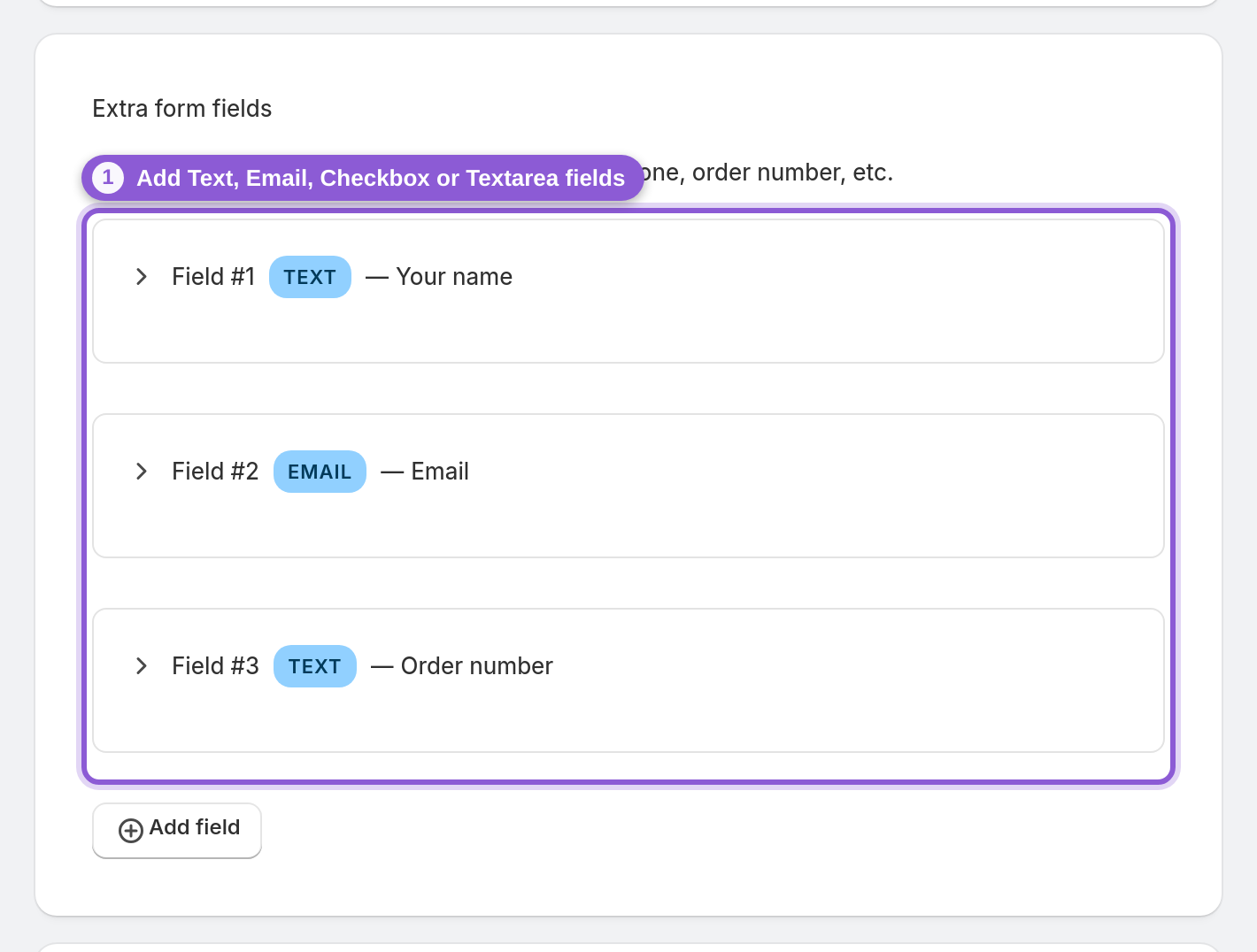
For files that come separately from an order — or after checkout — your store already has a standalone upload page the app created on install, published as a real page on your shop (by default at /pages/upload). Share that link anywhere: order confirmation emails, chat, social. It works without an order, and you can add your own intake fields (text, email, checkbox, textarea) so you know who sent what. Deleted it? One click restores it.
4 Choose where uploaded files are delivered
Uploads are reported by email to your inbox (one address or several), sent in batches every 30 minutes and optionally grouped into one email, and the files themselves land in the storage you choose per widget: the app's built-in cloud storage — files kept for a year, up to 5 GB each, downloadable right from the dashboard — or your own Dropbox, Google Drive, OneDrive, Box or SFTP server, with an optional separate folder per upload. Customers can upload any file type, so there's nothing to whitelist.
![Choose where uploaded files are delivered — s-button[href*="connect/google-drive"] highlighted](/docs-assets/img/shopify-file-upload-app/03-storage-destinations.png?6f58add9)
5 Test an upload end to end
Before going live, place a test order on a product with the widget (or open your upload page) and send a file through. Confirm the notification lands in your inbox (allow up to 30 minutes, since notifications are sent in batches) and the file appears in your chosen storage. From then on, the dashboard's upload health card tracks your success rate over the last 30 days and automatically retries failed deliveries from the last day every 30 minutes — with a "Retry now" button when you don't want to wait.
![Test an upload end to end — #upload-health-card s-text[variant="headingLg"] highlighted](/docs-assets/img/shopify-file-upload-app/04-upload-health.png?6f58add9)
Frequently asked questions
How do I let customers upload files with their Shopify order?
Install a file upload app like File To Inbox, create a product upload widget, and choose which products show it — all products or specific ones you pick. The app deploys the field to your product pages automatically, and each uploaded file arrives tied to the order, with a notification in your inbox.
Can customers upload artwork for print-on-demand orders?
Yes. The app is built for flows like print-on-demand artwork, engraving, prescriptions and custom orders — customers upload their file on the product page, where it arrives linked to the order, or on your store's upload page, which collects files without an order.
Where do uploaded files go?
You get email notifications for uploads (sent in batches every 30 minutes, optionally grouped into one email), and the files are stored where you choose: the app's built-in cloud storage (downloadable from the dashboard, kept for a year) or your own Dropbox, Google Drive, OneDrive, Box or SFTP server.
What file types and sizes are supported?
Customers can upload any file type — there's no whitelist to maintain. Files can be up to 5 GB each on every plan (Box may allow less, depending on your Box account).
Can I collect files without adding a field to every product?
Yes. The standalone upload page works independently of products and orders — share its link with customers whenever you need a file, and add custom fields like name or email so uploads are easy to match.
How do I find the files for a specific order?
The app links product-page uploads to the Shopify order. Open the widget's View uploads list in the dashboard: each upload shows its files with download links and a View order link to the Shopify order.