Shopify File Upload Size Limit, File Types and What File To Inbox Doesn't Do
Before you promise customers they can send a 3 GB video or a layered PSD, it helps to know the real limits. File To Inbox ‑ File Upload accepts any file type, up to 5 GB per file, on your product pages and on a standalone upload page. This guide lists the limits that matter in one place, then the things the app deliberately doesn't do, so you can plan your workflow around them.
Don't have File To Inbox yet? Install it from the Shopify App Store →
1 Any file type is accepted
There is no file-type whitelist. Images, PDF, AI, PSD, video, ZIP and anything else your customers have will go through, on both the product-page widget and the standalone upload page.
The flip side: you can't restrict uploads to certain types. If you only want, say, print-ready PDFs, say so in the text customers see, for example the instructions on your upload page or the widget's customer-facing labels, and check files when they arrive.
2 Files can be up to 5 GB each
Each file can be up to 5 GB. Large files use resumable (multipart) uploads, which is more forgiving than a single long upload on a shaky connection.
One exception: if you deliver to Box, the limit may be lower, depending on your Box account. Built-in storage, Dropbox, Google Drive, OneDrive and SFTP use the 5 GB limit.
3 Decide how many files a customer can send
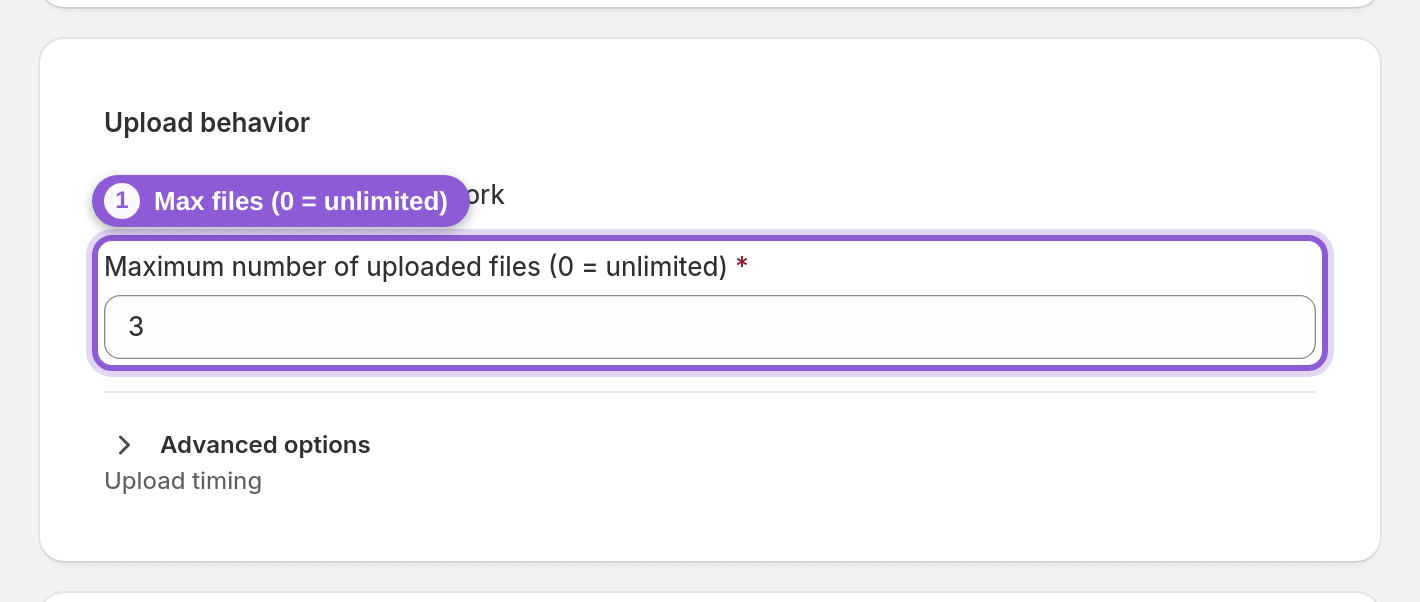
On the product-page widget you set a maximum number of files, where 0 means unlimited. You can also make the upload required before add to cart, or leave it optional, and add an optional message field for notes.
Files are attached to the cart line item, so they arrive tied to the order. See Add a file upload field to Shopify product pages for the full widget setup.
4 Phones work, including the camera
Customers on a phone can upload files from their device or take a photo with the camera directly from the upload field. That's handy for photos of a pet, a room or an item to be repaired, where the customer doesn't have a file ready.
5 Uploads happen on product pages and the upload page, not at checkout
File To Inbox collects files in two places:
• The product upload widget, on all products or specific products you pick
• The standalone upload page, by default at /pages/upload, which needs no order
There is no checkout or thank-you page upload. If customers need to send files after buying, share the standalone upload page link, and add an extra form field (for example a text field for the order number) so you can match the files to the order.
![Uploads happen on product pages and the upload page, not at checkout — s-link[target="_blank"], s-button[href*="uploadPage/edit"] highlighted](/docs-assets/img/file-upload-limits-and-supported-features/01-upload-surfaces.png?b9f2d4ff)
6 Know the storage destination limits
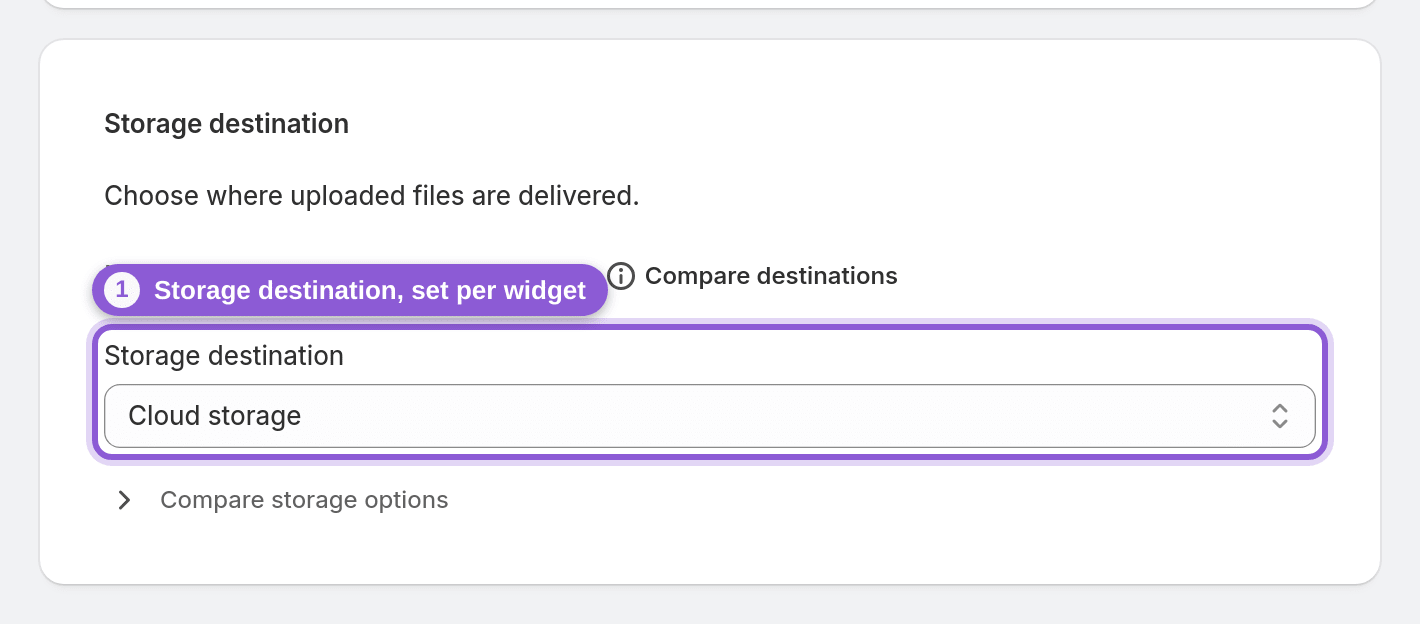
Files go to built-in cloud storage, Dropbox, Google Drive, OneDrive, Box or SFTP, chosen per widget or page. A few limits to plan for:
• SFTP only: plain FTP and FTPS are not supported
• OneDrive delivers to the connected account's own OneDrive, not directly to SharePoint sites or Teams document libraries
• Dropbox access is limited to the app folder Apps/FileToInbox.com
• Built-in storage keeps files for 365 days; in your own storage, retention is up to you
More in Where uploaded files go.
7 The app collects and delivers, it doesn't edit or approve
File To Inbox has no file editing and no proofing or approval workflow. It gets the customer's file to your storage with an email notification, and your design or approval process happens in the tools you already use.
Email notifications go out in batches every 30 minutes rather than instantly, and you can choose to group uploads into one email. Both plans, Pro ($19/month) and Business ($29/month), include a 7-day free trial: install File To Inbox and test your largest file before you go live.
Frequently asked questions
What is the maximum file size customers can upload?
Up to 5 GB per file, with resumable uploads for large files. If files are delivered to Box, the limit may be lower depending on your Box account.
Can I restrict uploads to certain file types, like PDF only?
No. Every file type is accepted and there is no merchant-set file-type restriction. Tell customers which formats you need in the instructions or labels they see, and check files when they arrive.
Can customers upload files at checkout or on the thank-you page?
No. Files are collected on the product page with the upload widget, or on the standalone upload page. For files that come after purchase, share the upload page link and add a field for the order number.
Can File To Inbox upload to FTP or SharePoint?
Not directly. Server delivery is SFTP only, so plain FTP and FTPS aren't supported. OneDrive delivery goes to the connected account's own OneDrive, not to SharePoint sites or Teams document libraries.
Can I send proofs and get customer approval in the app?
No. File To Inbox collects and delivers files; it has no file editing and no proofing or approval workflow. Customers can send revised files through the standalone upload page, but approvals happen outside the app.
Why didn't I get an email the moment a file was uploaded?
Notifications are sent in batches every 30 minutes, not instantly. You can also check the uploads list for each widget at any time to see new files.