Shopify Upload Button Not Showing on Product Page? How to Fix It
You set up the upload widget, opened a product page, and there's no upload button. With File To Inbox ‑ File Upload you never edit theme code: the app publishes the widget to your storefront itself, through a theme app embed and a script tag. When the field is missing, the cause is almost always one of a few settings: the product isn't in the widget's selection, no plan is active, the latest changes haven't reached Shopify, or your theme's layout has no room in the default spot. Work through these checks in order.
Don't have File To Inbox yet? Install it from the Shopify App Store →
1 Check the product is in the widget's selection
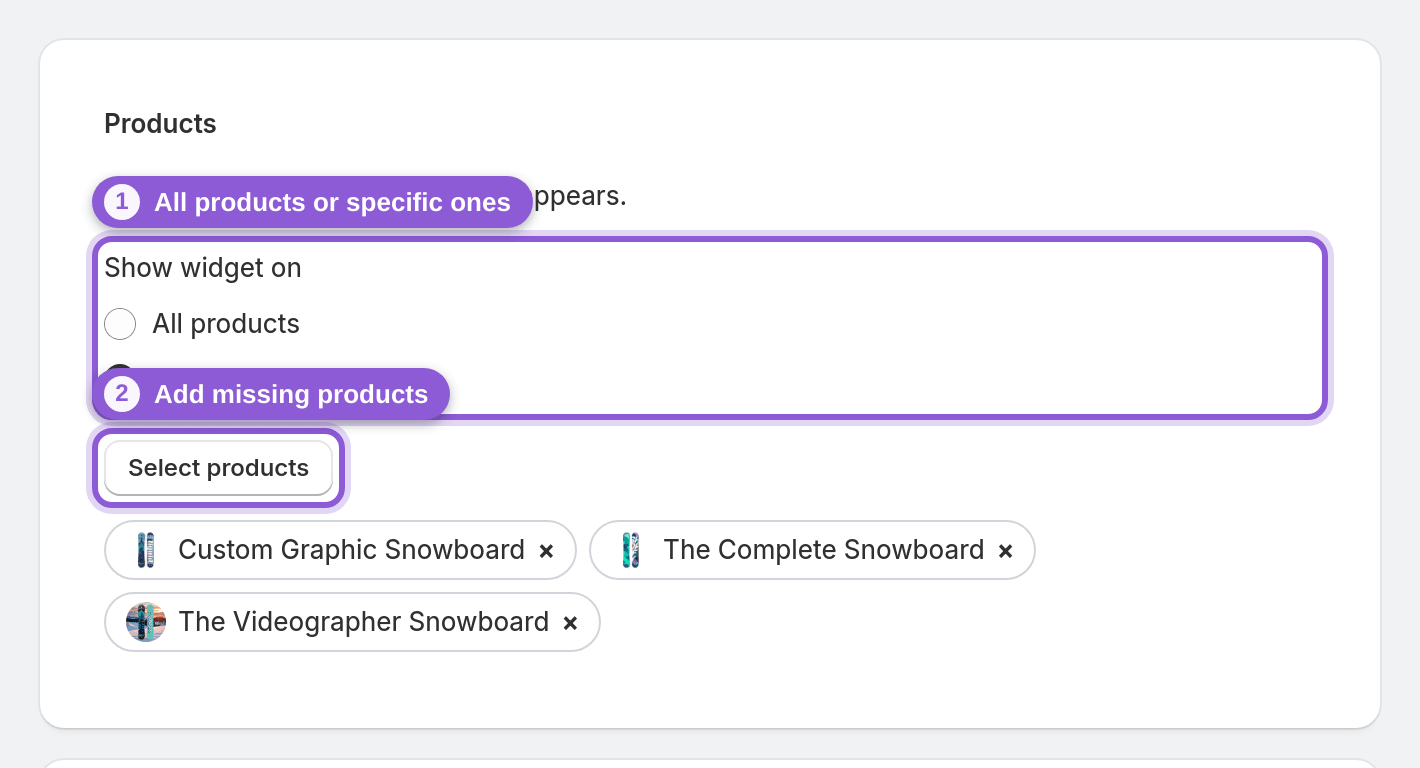
The widget shows on all products or only on specific products you pick with Shopify's product picker. If you chose specific products, the field only appears on those, so a product you added to your catalog later won't have it until you add it to the selection.
Open the widget in the app (the edit icon next to it on the dashboard), go to the Products section, and confirm which option is set. If the product you're testing is missing, add it with the product picker and save. If every product that needs a file should have it, switch to all products.
2 Confirm a plan is active
A plan is required to publish. File To Inbox has no free plan, so without an active plan your widget changes don't go live on the storefront.
Both current plans include the product-page widget:
• Pro: $19/month
• Business: $29/month
Each comes with a 7-day free trial. If you installed the app but never approved a plan, approve one and then save the widget again.
![Confirm a plan is active — s-button[href*="change-plan"] highlighted](/docs-assets/img/upload-widget-not-showing-on-product-page/01-change-plan.png?b9f2d4ff)
3 Save the widget and re-sync with Shopify
The app publishes the widget to your theme when you save your changes. If you edited the widget before a plan was active, or something interrupted publishing, the storefront may still show the old state.
Save the widget once more, then click Re-sync with Shopify on the app dashboard to push the widget to Shopify again. Reload the product page in a private browser window so you aren't looking at a cached copy.
![Save the widget and re-sync with Shopify — s-button[href*="deployChanges"] highlighted](/docs-assets/img/upload-widget-not-showing-on-product-page/02-re-sync.png?b9f2d4ff)
4 Check the app embed is turned on in your theme
The widget is delivered as a theme app embed. If the embed has been switched off in your theme editor, or you've just published a different theme, the field may not load.
Open your live theme's app embeds in the Shopify theme editor, make sure File To Inbox is enabled, and save. If you switched themes recently, check the theme that is actually published, not the one you were editing before.
5 Set a custom position with a CSS selector
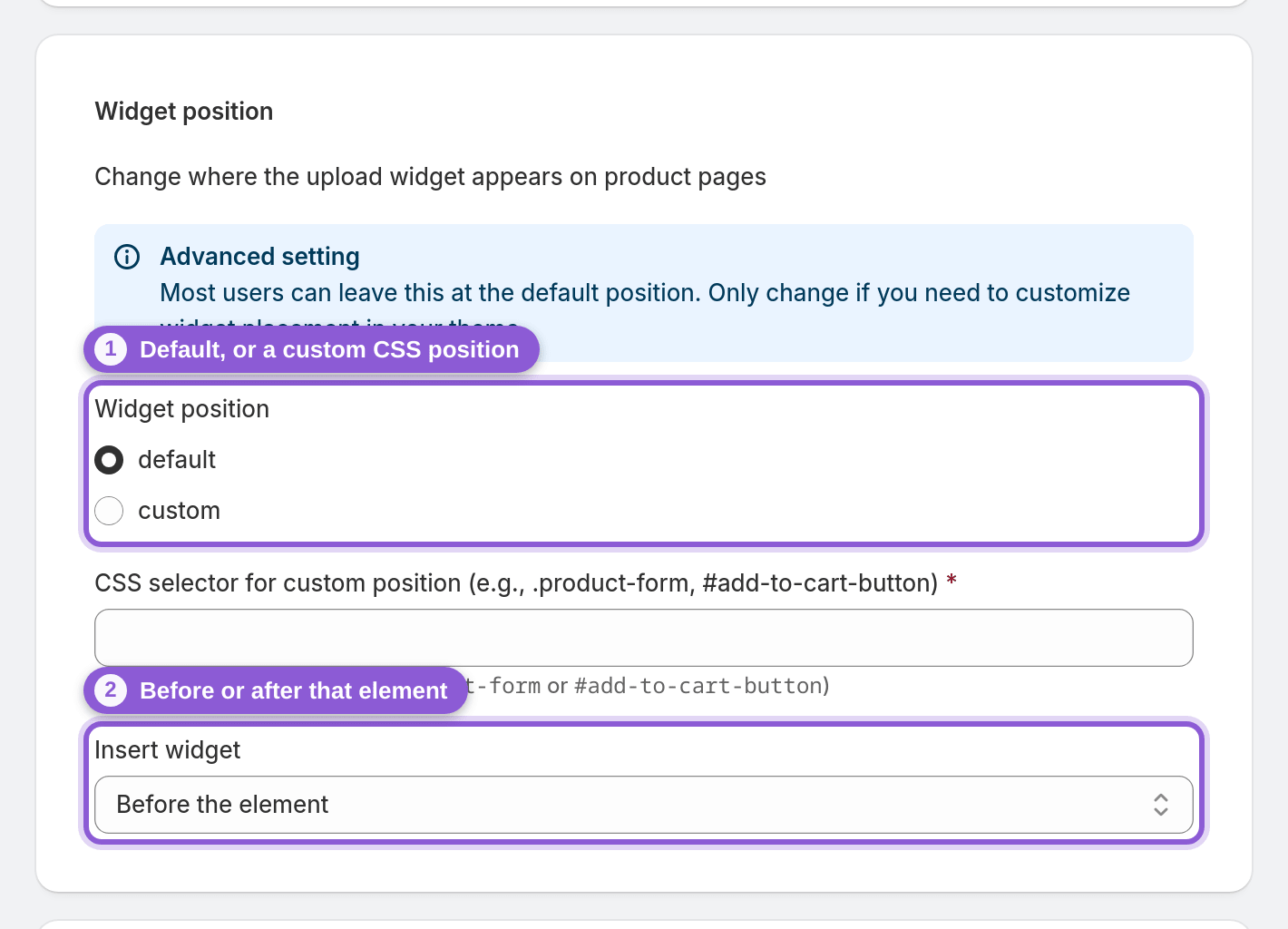
Custom and heavily modified themes don't always have the element the widget attaches to by default, so the field ends up hidden or in an odd spot. You can fix this without touching theme code: set a custom position with a CSS selector and choose whether the widget goes before or after that element in the widget's Widget position section.
Pick an element that sits on every product page where you want the field, such as your theme's add-to-cart form or the product description. Class names vary by theme, so inspect your product page in the browser to find one, for example .product-form. Save, then reload the product page to check the new position.
6 Test it like a customer would
Once the field shows, open the product page as a customer, upload a file and add the product to the cart. Files uploaded in the widget are attached to the cart line item, so they arrive tied to the order.
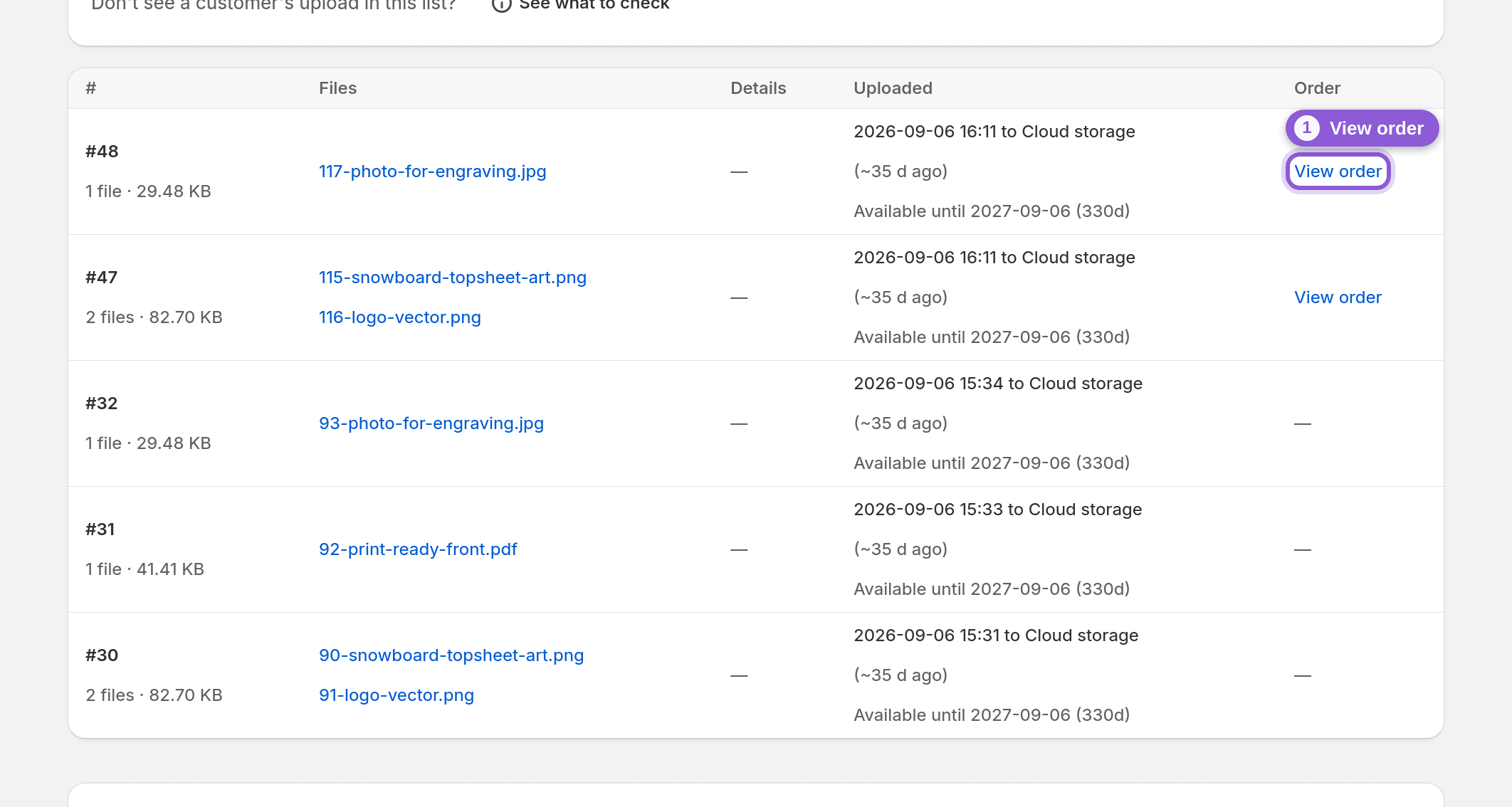
If you made the upload required, customers can't add to cart without a file, so it's worth testing that path too. After a test order, the widget's uploads list shows the files with a View order link, and the Shopify order page gets a View uploaded files link. If the field shows but files don't arrive, see the guide for uploads that don't show up.
Frequently asked questions
Why is the upload button not showing on my Shopify product page?
The most common reasons are that the widget is set to specific products and this product isn't selected, no plan is active (a plan is required to publish), or your latest changes haven't been published to Shopify yet. On custom themes, the default position may also not exist, which you can fix by setting a custom CSS selector.
Do I need to edit my theme code to add the upload field?
No. File To Inbox publishes the widget itself through a theme app embed and a script tag. If the default spot doesn't suit your theme, you set a CSS selector and choose before or after that element, with no theme code to edit.
Does the free trial include the product-page upload widget?
Yes. Both plans, Pro at $19/month and Business at $29/month, include the product-page widget and come with a 7-day free trial. There is no free plan, so you need to approve one of them before the widget can be published.
The upload field only shows on some products. How do I add it to the rest?
Your widget is probably set to specific products. Add the missing products with Shopify's product picker in the widget's settings, or switch the widget to all products, then save.
Can the upload field appear on the cart, checkout or thank-you page instead?
No. Files are collected on the product page or on the standalone upload page (by default /pages/upload), not at checkout or on the thank-you page. If you need files without an order, share the standalone upload page link.
How do I move the upload field to a different spot on the product page?
Set a custom position with a CSS selector and choose whether the widget appears before or after that element. Pick an element that exists on every product page, such as your theme's add-to-cart form, save, and reload the page to check.